
How to Improve Low-Quality Images and Remove Backgrounds with Free AI Tools?
Published on July 9, 2026
If you edit images for Etsy, print-on-demand, or social media then you've probably used AI tools before. Most online tools work fine. But they want your images uploaded to the cloud. Some need an account. Others charge credits after a few uses.
That's where Creative Fabrica Studio Desktop caught my attention. It skips the cloud dependency. Supported AI models run right on your computer. Tasks move faster this way. Good for anyone editing images regularly.
I installed the Windows version and spent some time testing its built-in AI tools. In this article, I'll share my experience, what worked well, a few things I noticed during testing, and who I think will benefit the most from it.
Why Local AI Tools Matter?
Many creators edit dozens of images every month. Sometimes hundreds. These could be Etsy product photos, print-on-demand graphics, Cricut files, or social media content. Most of the time its background removal and quality improvements. Simple tasks. But they add up fast.
Using free desktop AI tools for creators can make these tasks easier because supported AI models run on your own computer after they're installed. That means you don't always have to rely on cloud processing for every edit.
Some of the benefits include:
Faster editing for supported local AI tools.
No need to upload every image you want to edit.
Helpful for creators who process many images.
Better control over your creative workflow.
Free local AI models available for selected tools.
Of course, some features still require an internet connection or your Creative Fabrica account, but having local AI available is a nice addition.
Installing Creative Fabrica Studio Desktop
I tested the application on a Windows PC.
The installation was surprisingly quick. It took around 10 seconds from start to finish, and I was able to open the application immediately afterward.
Getting started was simple. After signing in with my Creative Fabrica account, I explored the available AI tools. Since I wanted to test the local AI experience, I chose the AI Image Upscaler first.
The upscaler offers two different options:
Creative Fabrica Local (Free).
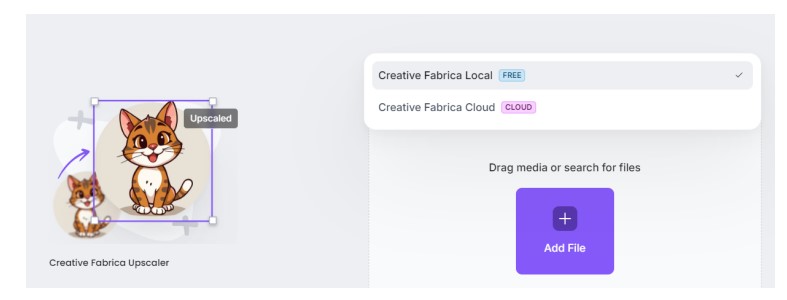
Creative Fabrica Cloud
I selected the free local model. Before using it for the first time, I needed to download the AI model, which was only 31.6 MB. The download completed quickly, and after that the model ran directly on my computer.
My Hands-On Test: AI Image Upscaler
One of the biggest reasons people use AI upscalers is to improve low-resolution images without losing quality.
I tested the free AI image upscaler for desktop using one of my own images.
At first, I ran into a small issue.
My original image was saved as a JFIF file, and the application didn't accept that format. Instead of being a major problem, it was easy to fix. I simply converted the image to PNG and tried again.
After converting it, the tool worked perfectly.
The image was processed quickly, and the result was impressive. The upscaled version was generated in 4K resolution, and the details looked much sharper than the original image. Textures appeared cleaner, and the overall quality was noticeably better.
For anyone working with product photos, website graphics, or printable designs, this feature can save a lot of time compared to manually trying to improve image quality.
Here are the before and after using AI upscaler results.
Before:

After:

Testing the AI Background Remover
After trying the upscaler, I also tested the AI Background Remover.
For this test, I used an image with a plain grey background.
The tool removed the background accurately while keeping the main subject clean and maintaining the image quality. There were no obvious rough edges or noticeable quality loss in my test image.
This feature can be especially useful if you create:
Etsy product listings
Print-on-demand products
Transparent PNG files
Website graphics
Social media images
Instead of manually selecting the background in traditional editing software, the AI completed the task within seconds.
After using the AI background Remover on the same image we used before.
After background Removal:

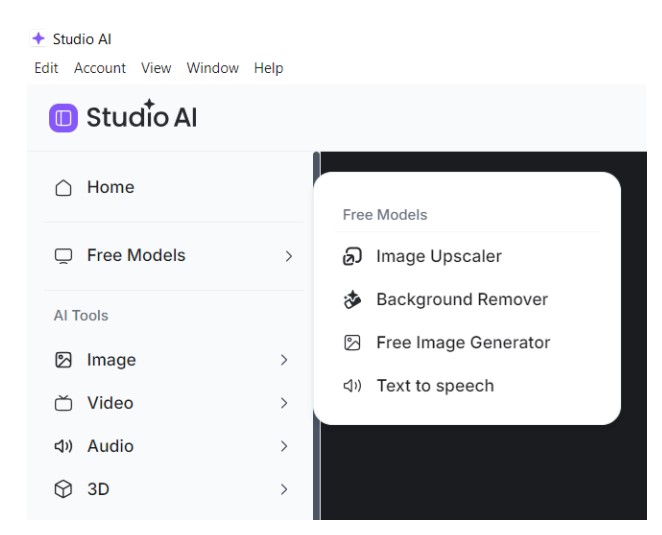
Free AI Tools Available
Besides the tools I personally tested, Creative Fabrica Studio Desktop also includes several free AI features that are available after signing in.
During my testing, these free modes were available:
AI Image Upscaler
AI Background Remover
Free AI Image Generator
Text-to-Speech
These tools cover some of the most common tasks creators perform every day, making the desktop app useful even if you don't need advanced editing software.
More AI Tools Available in Creative Fabrica Studio Desktop
Although I mainly tested the AI Image Upscaler and AI Background Remover, the desktop app includes many more AI-powered tools for different creative needs.
Image Tools
If you work with images, you'll find several useful options, including:
· AI Image Editor
· AI Image Generator
· AI Photo Styles
· AI Mockup Generator
· People Remover
· Image Vectorizer
· AI SVG Generator
These tools can help with everything from creating new artwork to preparing designs for printing or editing existing images.
Video Tools
The desktop app also includes AI tools for video creators:
· AI Video Generator
· AI Video Editor
· AI Video Upscaler
· Image Alive
These are useful if you create marketing videos, product showcases, or social media content.
Audio Tools
For creators working with sound, Creative Fabrica offers:
· AI Music Generator
· AI Sound Effect Generator
· AI Speech Generator
These can be useful for videos, presentations, and other creative projects.
3D Tools
If you're interested in 3D design, there are several tools available as well:
· 3D Model Viewer
· 3D Model Generator
· 3D Print Generator
· 3D Sculpt
· World Creator
Beyond these categories, Creative Fabrica also includes utilities for marketing, entertainment, crafting, and workspaces, making the desktop app more than just an image editor.
Free Credits for New Users
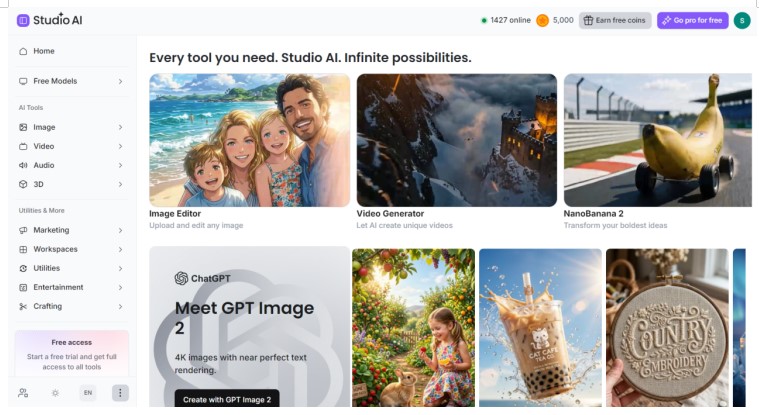
When creating a new account, Creative Fabrica provides 5,000 coins to help you explore its AI tools.
There is also a free trial option that provides 25,000 additional coins when you start the trial using a credit card or PayPal. These credits can be useful if you want to explore more of the cloud-based AI features alongside the free local tools.
Who Is Creative Fabrica Studio Desktop Best For?
After using the application, I think it's especially useful for:
· Etsy sellers preparing product photos
· Print-on-demand businesses
· Cricut users creating transparent PNG files
· Sublimation designers
· Digital product creators
· Bloggers and website owners
· Small business owners
· Teachers creating printable resources
· Content creators who regularly edit images
If your work involves improving image quality or removing backgrounds, the desktop app can help simplify those tasks.
Pros and Limitations
No software is perfect, so here are my honest impressions after testing the desktop application.
Pros
· Very quick installation on Windows.
· Clean and easy-to-use interface.
· Free local AI Image Upscaler available.
· Free local AI Background Remover available.
· AI Image Upscaler produced a clear 4K image during my test.
· Background Remover preserved the quality of my test image.
· Small local model download (31.6 MB).
· Large collection of AI tools in one application.
· Windows and Mac support.
Limitations
· You need to sign in before downloading local AI models.
· The local AI model must be downloaded before first use.
· JFIF images weren't accepted during my testing, so I converted the file to PNG before upscaling.
· Performance may vary depending on your computer's hardware.
· Some features may still require an internet connection or Creative Fabrica account depending on the workflow.
Frequently Asked Questions
Is Creative Fabrica Studio Desktop free?
Yes. The desktop application is free to install, and it includes supported free local AI tools along with other features.
Does the AI Image Upscaler run locally?
During my testing, I selected the Creative Fabrica Local model. After downloading the 31.6 MB model, the image upscaling process used the local model on my computer.
Does it work on Windows?
Yes. I tested the Windows version, and the installation took around 10 seconds.
Is there a Mac version?
Yes. Creative Fabrica Studio Desktop is available for both Windows and Mac.
Can I use it for Etsy product photos?
Yes. The Background Remover and AI Image Upscaler can help prepare cleaner, higher-quality product images.
Can I create transparent PNG files?
Yes. The AI Background Remover makes it much easier to remove backgrounds, which is useful when creating transparent PNG images for Cricut projects, digital products, and online stores.
Do I need to upload every image?
Supported local AI tools can run using locally installed models after you've downloaded them. Some other features or workflows may still rely on your Creative Fabrica account or internet connection.
Final Thoughts
I spent some time testing Creative Fabrica Studio Desktop, and overall, I walked away pretty impressed. Setup was quick, the interface didn't take long to figure out, and both tools I tried, the AI Image Upscaler for Windows and the AI Background Remover, actually delivered.
The Upscaler took my image up to 4K with a clear jump in quality. The Background Remover did a clean job pulling the subject away from a grey background too, without messing with the image quality in the process.
What stood out most was having so many AI tools bundled into one app. Whether it's product photos, print-on-demand designs, marketing content, or just personal projects, not having to jump between different tools saves a real amount of time.
If you're after a desktop app that brings creative tools together with solid local AI options, Creative Fabrica Studio Desktop is worth checking out.

Thomas
My Name is Thomas, I am a professional designer, creative blogger, and the author of Stylish Namez I am specializes in creating stylish and unique name ideas for gaming and social media platforms. With a passion for creativity and digital trends, Thomas helps users find eye-catching names that stand out online. For inquiries, contact: thomasjoye88@gmail.com